How to let a client hear your mix live, while you work
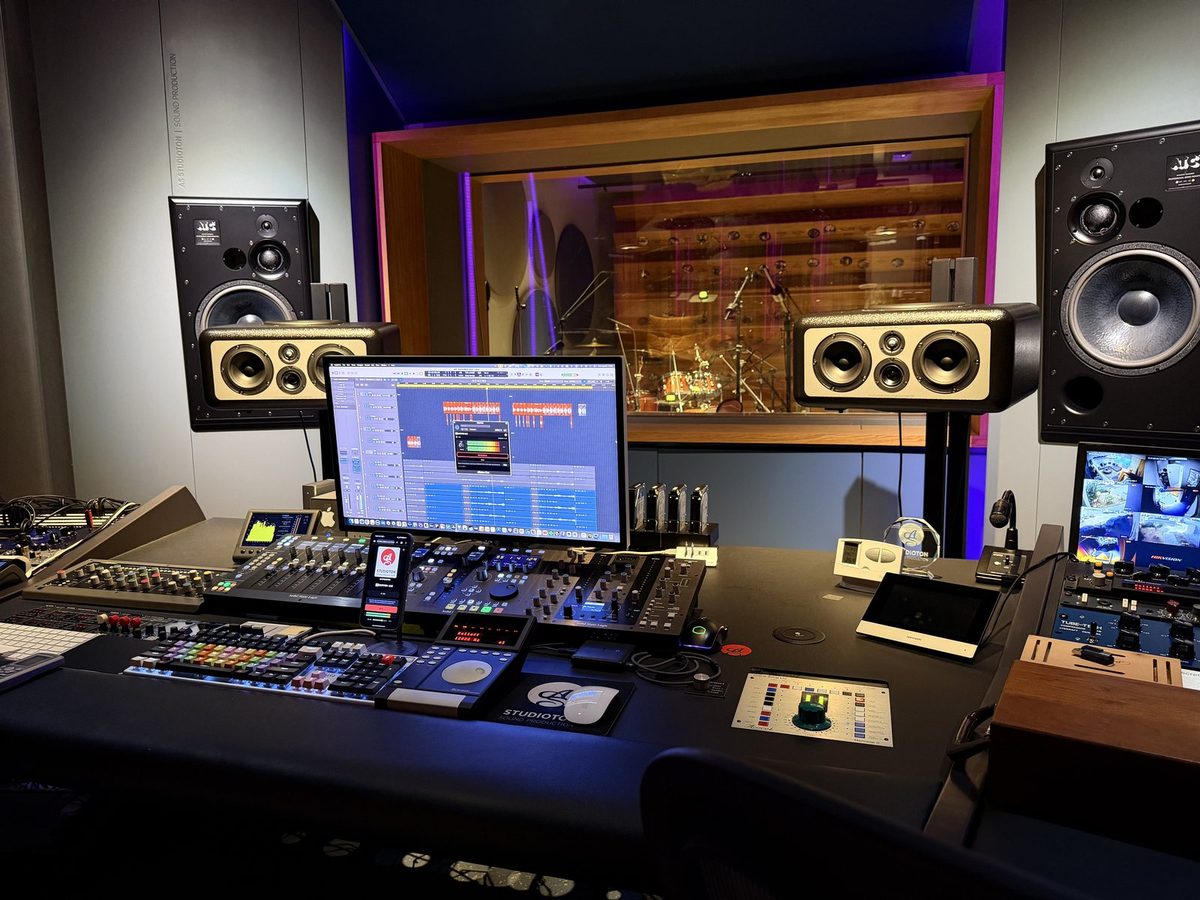
You know this meeting. You're on a call with your client (the director, the artist, the producer, the agency) and they ask for "just a couple of tweaks". Then: "Can I hear it while you do it?"
That's where it falls apart. You share your screen and the music comes through the call: squashed, cutting in and out, with the call's noise suppression eating the reverb tails. Or you don't share at all, and you end up describing changes they can't hear. Either way you finish the call, bounce a file, send it, and wait for a reply that says "I'm not sure, can you play it again?"
Or the other version: "Send it to me, I want to hear it on my phone." Fair enough. That's where most of their audience will hear it too.
There's a simple way to handle both: your client opens one link and hears your DAW live, in their browser, on their laptop or their phone, while you work. This page shows how it works with dBaton CUE, a plugin that lets you stream your DAW to your client's browser. You pay for it once; it isn't a subscription.
Keep the conversation on the call. Keep the music off it.
Calls are built for voices. Even with a music mode switched on, your mix still travels through a meeting app, mixed in with everyone's microphones and through whatever settings each person has.
So separate the two. Keep talking on Zoom, Meet or the phone, as you always do. Send the music through its own channel. CUE streams your DAW straight to your client's browser, apart from the call. Share your screen if you want them to see the session; the music doesn't depend on it.
The other usual option, bounce and send, gives them real audio but takes the live part away: every change costs a bounce, an upload, a message and a wait, and notes written hours later are vaguer than notes said in the moment. (More on when to send a file and when to stream.)
Before the session: two minutes of prep
1. Put CUE on your master bus. It's a normal plugin (VST3, AU and AAX, on Mac and Windows). Put it last in the chain: what comes out of your master bus is what your client hears.
2. Copy your link, once. Press Start and copy it. Your link stays the same from one session to the next, so a client you work with often keeps it, like a phone number. It only plays while you're streaming; the rest of the time it waits. If you ever want a fresh one, Reset Link gives you a new link and the old one stops working.
3. Send it the way you already talk to them. WhatsApp, email, a text: "Open this when we start, it plays in your browser."
4. Do a one-minute dry run. Open the link yourself on another device. You'll hear your session with a short delay, under half a second on a good connection. That's normal for listening, and it means the real session starts with music, not with troubleshooting.
During the session: they listen while you work
Your client opens the link and hears your master bus on its own audio stream, not through the call. From there it runs like you're in the same room:
- You play, they react. "There, that hit is too early." "The vocal gets lost in the chorus." You drop a marker in your DAW and keep going.
- They hear changes as you make them. Pull a fader, mute the brass, try the other ending. They hear it a moment later and say yes or no. Small decisions get settled on the spot.
- Everyone hears the same thing. If the director, the editor and the producer all need to weigh in, the same link works for up to 8 listeners at once, each on their own device.
"I want to hear it on my phone"
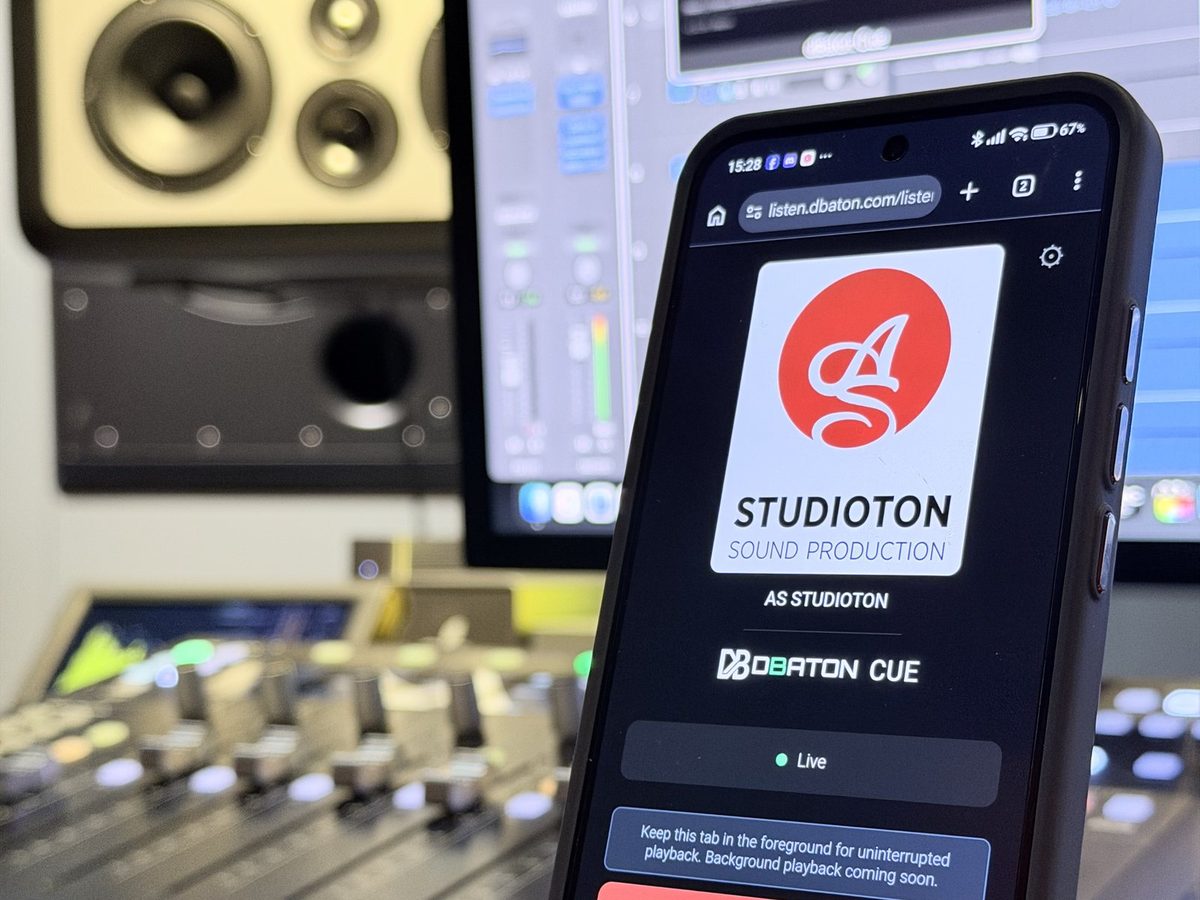
Your client may want to judge the mix where their audience will hear it: on a phone, on earbuds, on a laptop. With CUE they open the same link on their phone. No app, no account, no file to download. Your studio's name and logo can appear on the page they open.
And if the network on their side is difficult (hotel Wi-Fi, 4G, a strict office network), CUE finds a working connection by itself, and the listening page adjusts to their connection as they listen. Nobody has to say "try another browser".
After the session
Bigger changes take a bit longer: "Give me twenty minutes and I'll play you the revision." Same link; they just open it again. Less waiting between changes, fewer exports nobody needed, and a clearer path to "approved".
When it's approved, you deliver the final file as usual. CUE is for everything that happens before that.
What you need (the honest part)
- A stable upload connection. You're sending audio out of your studio in real time. Wired is the safe choice; if your connection is fragile, test it first.
- A voice channel. CUE carries the music one way; the conversation stays on your usual call.
- One dry run before your first real session. Two minutes, once.
What your client doesn't need: installing software, creating an account or being walked through anything. If they can open a link, they can listen. The audio is encrypted on its way to them, and we don't record or store it. (Curious how it works? Here's how streaming DAW audio to a browser works.)
Call and files, or a live link
| Call, then bounce and send | Call + CUE link | |
|---|---|---|
| The music reaches them | Through the call, or later as a file | On its own audio stream, live |
| They hear changes as you make them | Only through the call | Yes |
| On their phone | Download a file and find it | Open the same link |
| A new revision | Export and send again | They reopen the link and listen |
| What your client installs | Depends on the tool | Nothing |
Try it with your next client
The next time a client asks to hear changes as you make them, send a link instead of a file. Put CUE on your master bus and try it with a real client.
The dBaton team