Getting started with dBaton CUE
Everything from installing the plugin to your client pressing play — in about five minutes. No account to create on either side.
- dBaton CUE installed (macOS 13+ or Windows 10+)
- Your license serial — it's in the email you got when you bought CUE or started your trial
- Any DAW that loads VST3, AU or AAX plugins
1. Install the plugin
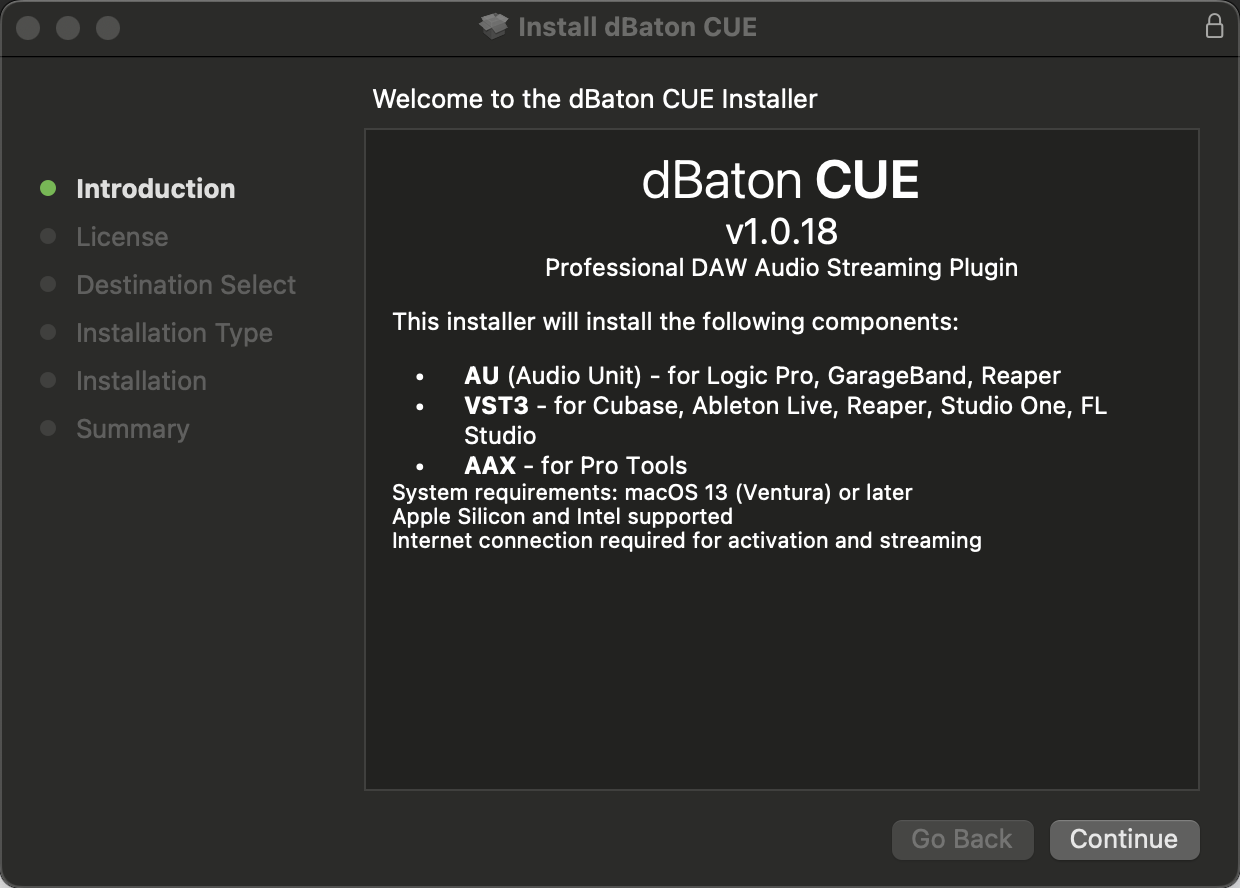
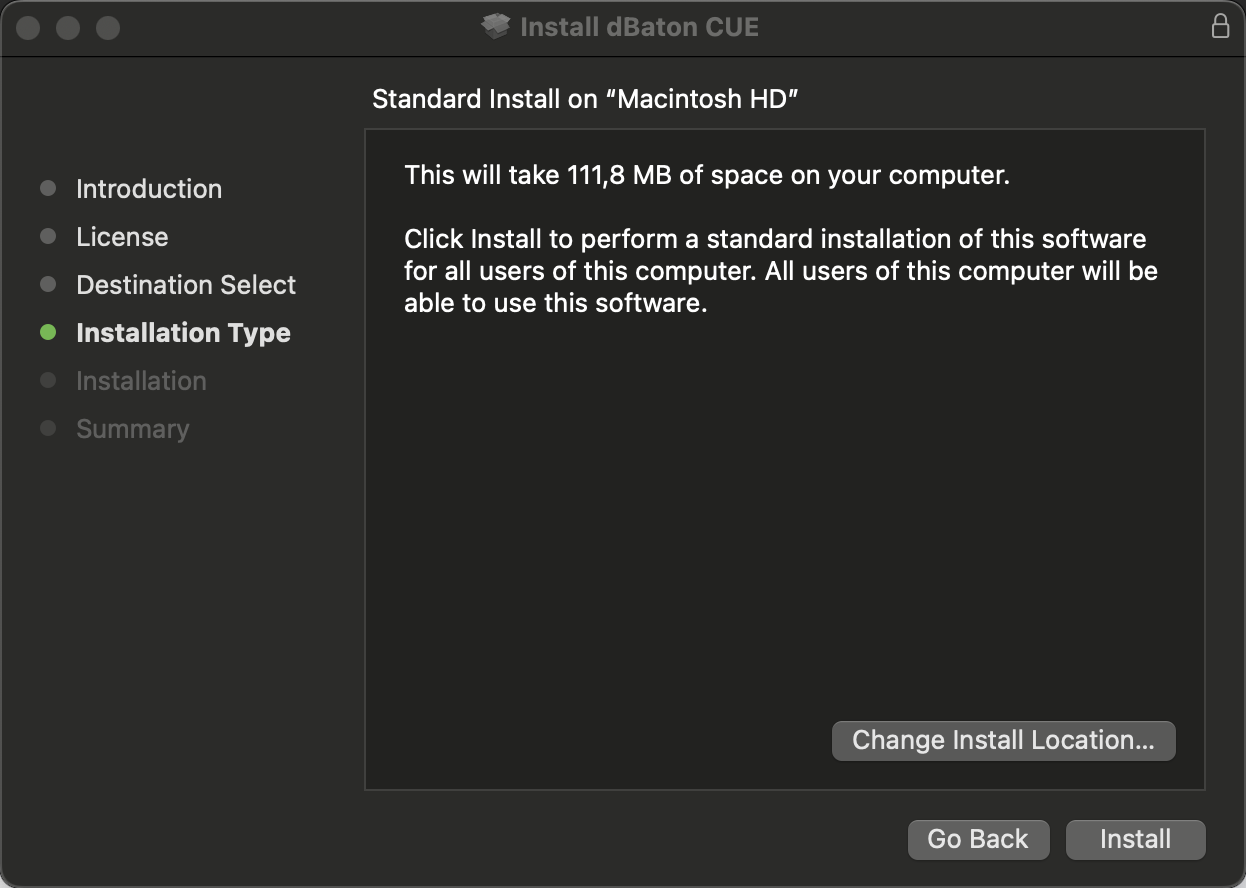
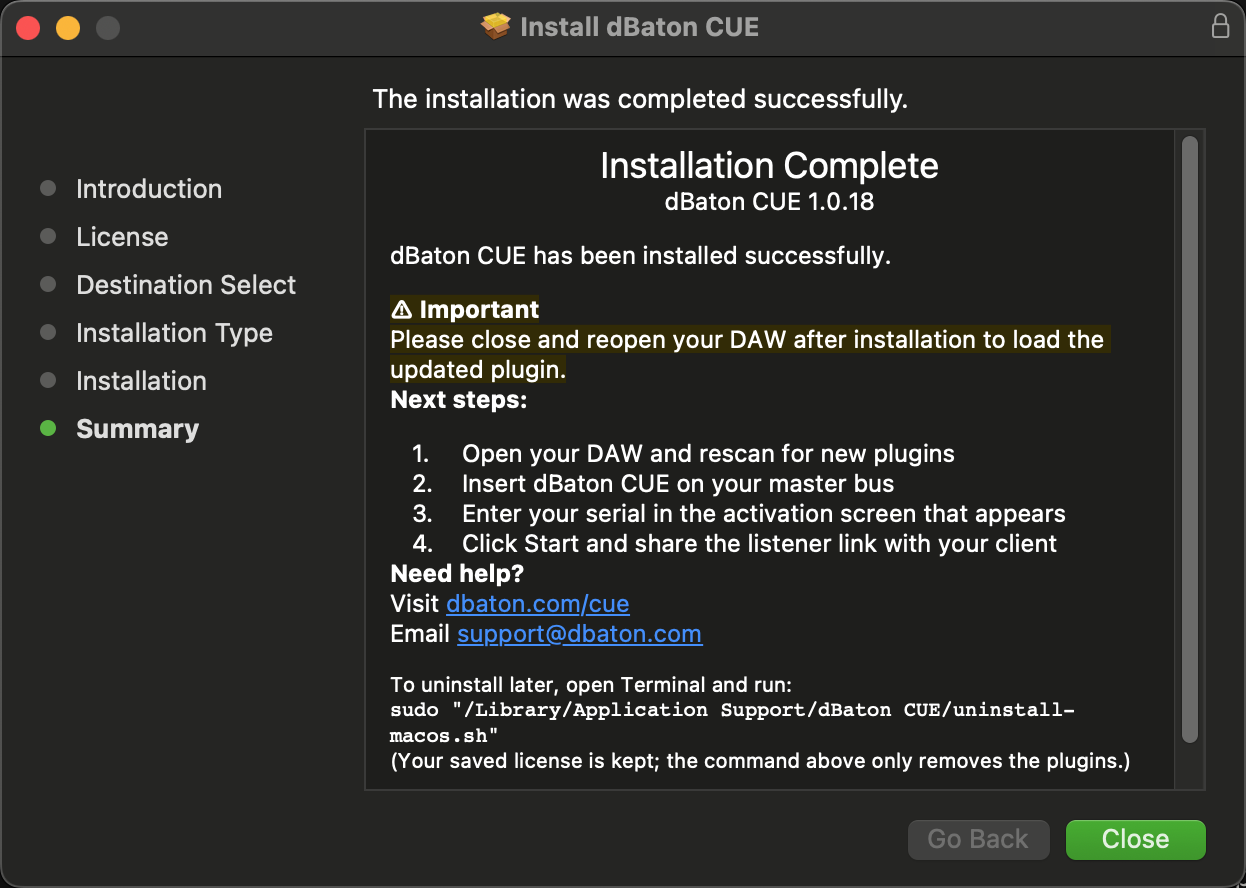
Download CUE for macOS or Windows and run the installer. It adds the plugin to your VST3, AU and AAX folders — same two clicks on Mac and Windows.
2. Activate your license
Open CUE for the first time. You'll see a single field for your serial (it looks like DBCUE-XXXX-XXXX-XXXX-XXXX). Paste the serial from your purchase email and click Activate.
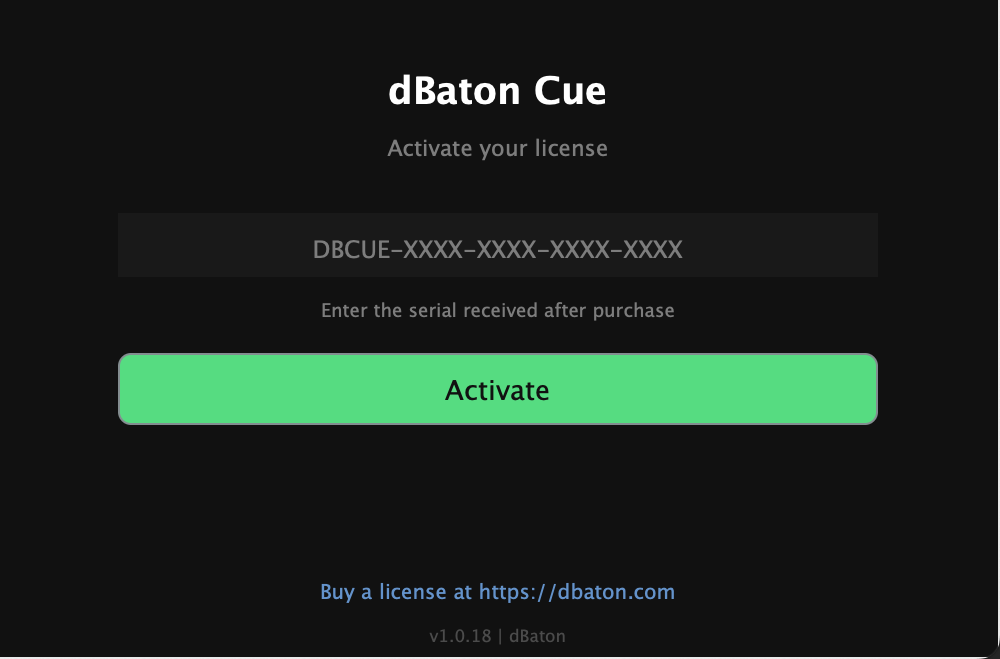
That's the whole account step. There's nothing to sign up for and no password to remember — the serial is your license.
3. Insert CUE on your master bus
In your DAW, load CUE as the last plugin on your master bus. Whatever passes through your master is exactly what your listener will hear. CUE loads in any DAW that takes VST3, AU or AAX — Cubase, Logic, Pro Tools, Reaper and the rest.
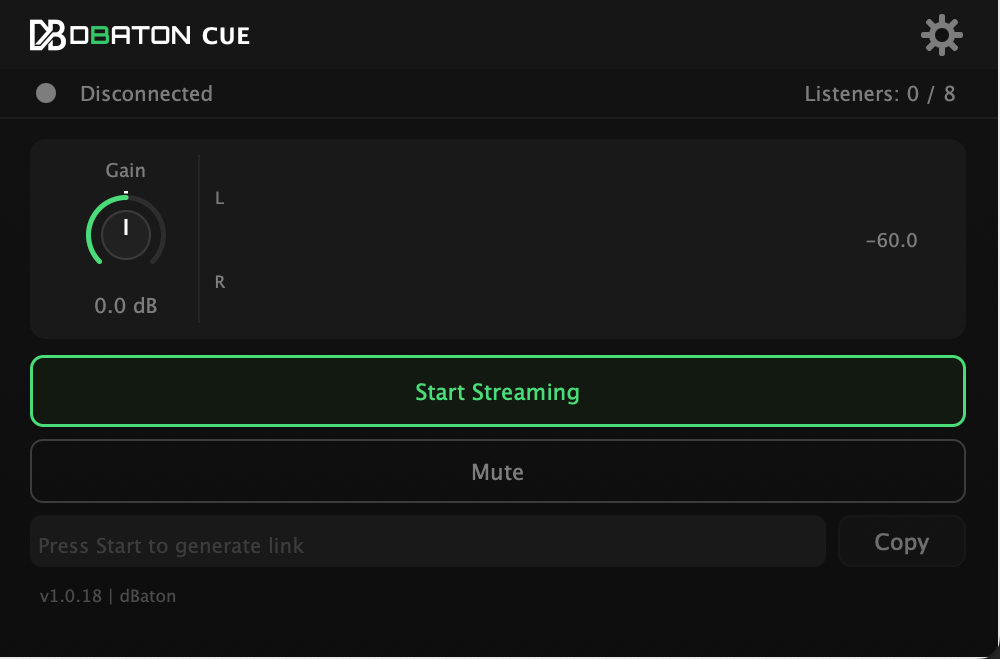
4. Start streaming and copy the link
Press Start. CUE generates a private link and the meters go live. Click Copy to put the link on your clipboard.
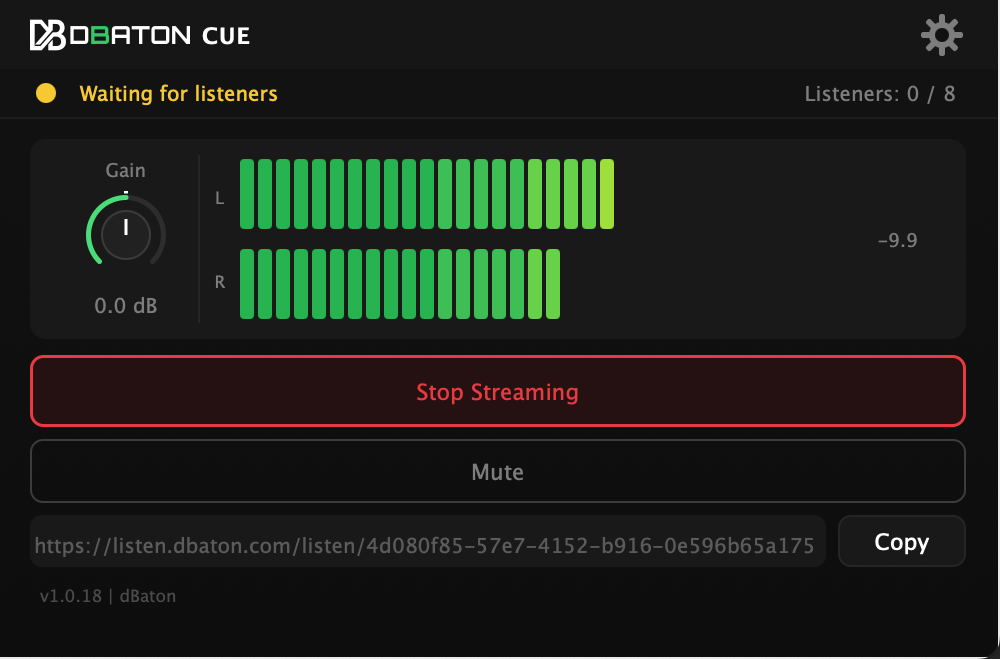
5. Send the link to your client
The link is a normal URL — send it however you already talk to your client: WhatsApp, email, Slack, a text. Nothing gets installed on their side.
Up to 8 people can open the same link and listen at once.
6. What your client sees
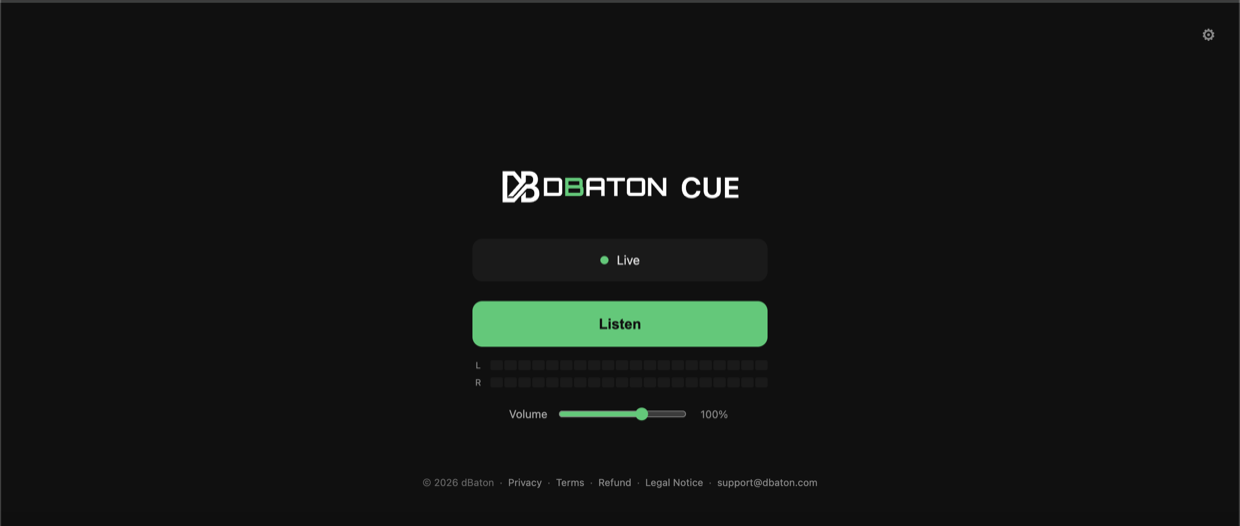
They tap the link and it opens in their browser — no app, no account, no sign-up. They press Listen and hear your session.
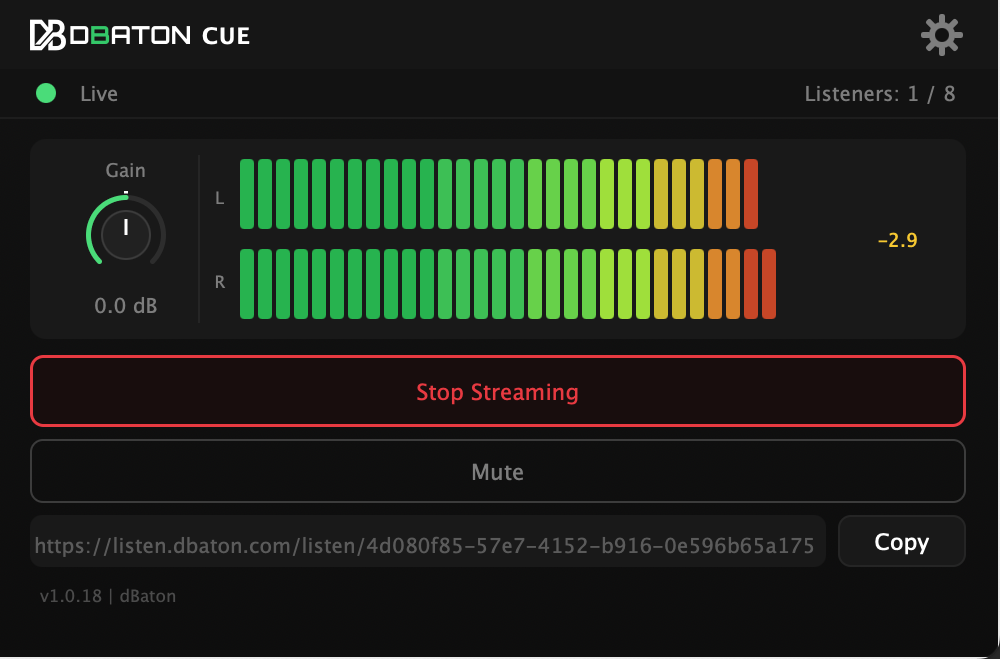
Once they're connected, CUE shows you they're there.
Adjusting quality and other settings
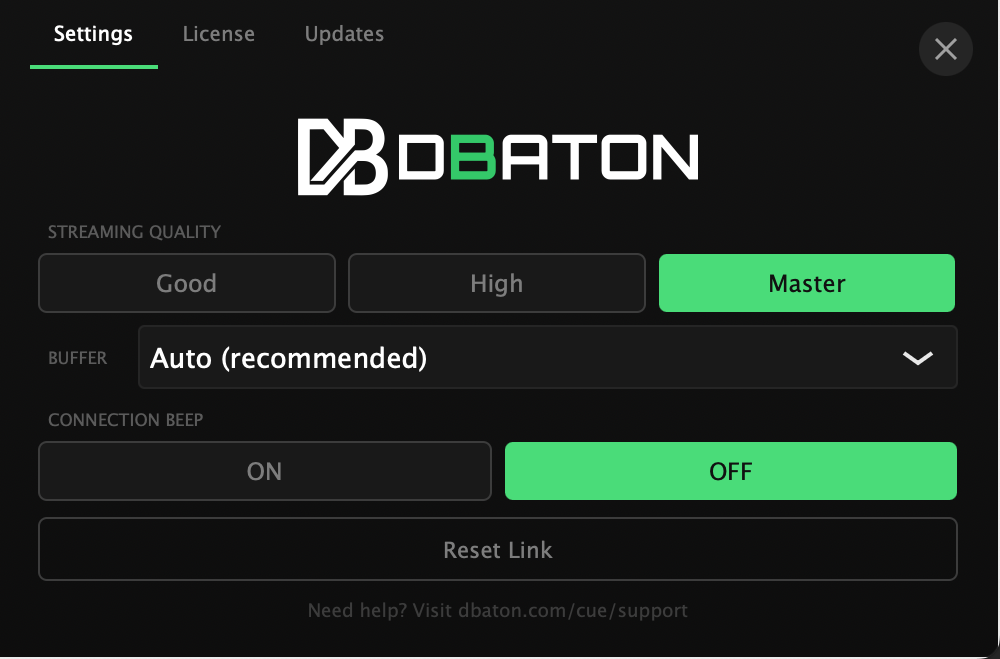
Open the Settings tab in the plugin to choose an audio quality that fits your connection (Good / High / Master), toggle the connection beep, or reset your link.
Managing your license
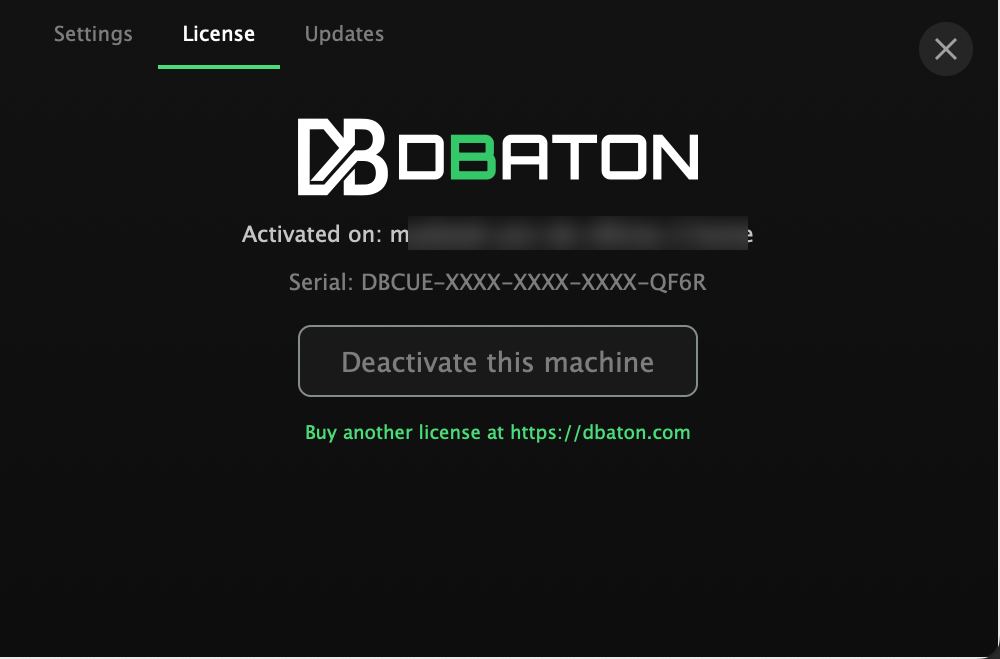
The License tab shows which machine CUE is activated on. Use Deactivate this machine to free up a slot before moving CUE to another computer.
Putting your studio's name on the page
You can show your studio's name and logo on the page your client opens, right above the player, so they see your studio and not ours. You set it up on the web, not in the plugin, and it applies to every session after that.
How to add your studio's name and logo
Troubleshooting
The plugin doesn't show up in my DAW
Restart the DAW so it rescans plugins. If it's still missing, re-run the installer and check the VST3/AU/AAX formats were selected.
My client says the session has ended
That means the stream stopped, not that the link is dead. Your link stays the same unless you press Reset Link: start streaming again and ask them to reload the page they already have.
My client can't hear anything
Make sure CUE is on your master bus (not a single track), that you've pressed Start, and that they've pressed Listen and turned their volume up.
Still stuck?
Questions go straight to the person who built CUE.